
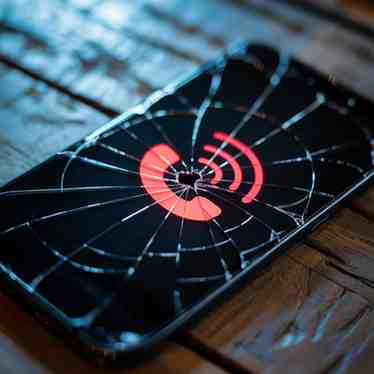
When a red phone signal suddenly appears on your screen, it can instantly trigger concern. Many users associate the colour red with danger, urgency, or malfunction. However, in most cases, this indicator is not a threat but rather a communication tool designed to inform you about your device’s network status. Understanding what it truly represents is the first step toward responding calmly and effectively.
Modern smartphones are built to provide constant feedback about connectivity. Signal bars, roaming icons, Wi-Fi symbols, and emergency indicators all serve as real-time status updates. A red phone signal simply means that your device is either struggling to connect to your carrier’s network or has lost standard connectivity altogether. Although it may look alarming, it is primarily informational rather than catastrophic.
What Does a Red Phone Signal Actually Mean?
In technical terms, a red phone signal indicates limited or unavailable cellular connectivity. Instead of showing normal signal bars, your phone may display red bars, a red cross over the signal icon, or messages such as “No Service” or “SOS Only.” Each variation communicates a slightly different condition, yet they all revolve around one central issue: restricted network access.
Importantly, the red indicator does not mean your phone is broken. In fact, your device hardware is usually functioning perfectly. The problem typically lies in communication between your phone and nearby cellular towers. Therefore, before assuming serious damage, it is wise to evaluate environmental and network-related factors.
Moreover, smartphones are engineered with layered communication systems. Even if standard calling and mobile data are unavailable, emergency calling capabilities often remain active. This design ensures that users can still reach emergency services when a compatible network is detected, even if it is not their primary carrier.
Why the Colour Red Is Used Colour
Psychology plays a subtle but powerful role in user interface design. Red naturally draws attention and signals urgency across cultures. Because of this universal association, manufacturers use red to ensure users immediately notice connectivity issues.
However, urgency does not automatically equal danger. In the context of a red phone signal, the colour is meant to prompt awareness rather than panic. It encourages users to check their surroundings, verify their network status, or take corrective steps if necessary. Consequently, while the visual cue feels dramatic, its purpose is practical and preventive.
Primary Causes of a Red Phone Signal
Although the symbol itself is simple, the reasons behind it can vary. Understanding these causes helps users distinguish between minor disruptions and more persistent issues.
Weak or No Network Coverage
The most common reason for a red phone signal is poor network coverage. If you are in a rural area, underground parking structure, elevator, or remote location, your device may struggle to detect a strong cellular tower signal. As a result, connectivity weakens, and the red indicator appears.
Additionally, buildings with thick concrete walls or metal structures can block radio frequencies. Large offices, shopping malls, and high-rise apartments sometimes create signal dead zones. In these cases, moving closer to a window or stepping outdoors often restores connectivity within seconds.
Network coverage maps also reveal that signal strength fluctuates geographically. Therefore, if you frequently travel between urban and rural regions, you may notice the red signal more often in low-density areas.
Network Congestion
Even in areas with strong coverage, temporary congestion can disrupt service. During concerts, sports events, emergencies, or peak hours, thousands of users may attempt to access the same cellular tower simultaneously. When network demand exceeds capacity, devices may lose stable connections.
Consequently, your phone might display a red phone signal despite being in a well-covered area. In such situations, the issue is not signal absence but network overload. Typically, connectivity improves once traffic levels decrease.
SIM Card or Account Issues
Another possible cause involves your SIM card or mobile account. If the SIM is damaged, improperly inserted, deactivated, or associated with an expired plan, the device cannot authenticate with the carrier’s network. Without proper authorisation, standard service is denied.
Sometimes, simply removing and reinserting the SIM card resolves the problem. However, in other cases, contacting your carrier may be necessary to verify account status or activation details.
Additionally, switching devices without correctly transferring network settings can also trigger a red indicator. Ensuring your carrier configuration is updated is an essential troubleshooting step.
Software Glitches or System Errors
Smartphones rely heavily on software to manage network communication. Occasionally, operating system updates, configuration errors, or background app conflicts interfere with connectivity. When the system fails to maintain a stable network handshake, the red phone signal may appear.
Fortunately, minor glitches are often resolved by restarting the device. Rebooting refreshes background processes and re-establishes connections with cellular towers. If the issue persists, resetting network settings can sometimes restore normal operation without affecting personal data.
Aeroplane Mode Activation
Surprisingly, many red signal incidents occur because aeroplane mode is accidentally enabled. When activated, aeroplane mode disables all wireless communication features, including cellular connectivity. Although some devices show a distinct aeroplane icon, others may simply display a red or empty signal indicator.
Therefore, checking aeroplane mode should always be one of the first troubleshooting steps. A quick toggle off and on can instantly restore normal signal bars.
Emergency Mode and “SOS Only”
One of the most misunderstood aspects of a red phone signal involves emergency mode. When your device displays “SOS Only,” it means regular calls and mobile data are unavailable through your primary carrier. However, emergency numbers can still be dialled if any compatible network is within range.
This feature is intentionally designed for safety. Even without a valid SIM card, many smartphones allow emergency calls through any accessible network. As a result, the red signal does not eliminate all communication possibilities.
Nevertheless, emergency calling depends on the presence of at least one reachable cellular tower. In completely isolated environments with zero network infrastructure, even SOS functionality may not work. This distinction is important because it clarifies that the red phone signal is a warning about connectivity limitations, not an automatic life-threatening condition.
Should You Be Worried Immediately?
In most everyday scenarios, there is no reason for immediate alarm. Temporary signal loss happens regularly due to environmental shifts, network transitions between towers, or minor system glitches. Within minutes, connectivity often returns automatically.
However, if the red phone signal persists for extended periods in an area where coverage is typically strong, further investigation may be necessary. Continuous disruptions could indicate account suspension, SIM malfunction, or localised carrier outages.
The key is context. A brief appearance in a tunnel is normal. A prolonged absence of service at home may require troubleshooting. Understanding this difference prevents unnecessary anxiety while encouraging responsible action when needed.
Troubleshooting, Long-Term Solutions, and Expert Recommendations
In the previous sections, we examined the meaning, causes, and psychological impact of a red phone signal. Now, it is time to focus on practical solutions and long-term strategies. Although temporary connectivity loss is common, persistent issues require a structured approach. Therefore, understanding how to troubleshoot effectively can restore service quickly while preventing future disruptions.
Modern smartphones are built with intelligent recovery systems. In many cases, connectivity returns automatically once network conditions stabilise. However, when the red phone signal remains visible for an extended period, manual intervention becomes necessary. Instead of guessing randomly, following a logical troubleshooting sequence increases the chances of success.
Immediate Troubleshooting Steps
The first and simplest step is restarting your device. A reboot refreshes background processes, clears temporary system conflicts, and re-establishes communication with nearby cellular towers. Although this method seems basic, it often resolves minor software glitches within minutes.
Next, toggle aeroplane mode on and off. This action forces the device to disconnect from all wireless networks and then reconnect from scratch. As a result, the phone initiates a fresh network search, which can restore normal signal bars.
If the issue persists, check your SIM card. Remove it carefully, inspect for dust or visible damage, and reinsert it securely. Because authentication depends on the SIM, even slight misalignment can prevent network registration. After reinsertion, give the device a few moments to reconnect.
Additionally, confirm that your mobile plan is active. Account suspension, unpaid bills, or expired prepaid packages can block network access. Therefore, verifying account status through your carrier’s app or customer service may quickly identify the root cause.
Adjusting Network Settings
Sometimes, the red phone signal appears due to incorrect network configuration. Resetting network settings can restore default connectivity parameters without deleting personal files. This process clears saved Wi-Fi networks, Bluetooth pairings, and carrier settings, allowing the device to rebuild connections from scratch.
Furthermore, ensure your carrier settings and operating system are updated. Network providers release periodic updates to improve tower compatibility and performance. Running outdated software may cause communication conflicts, especially after infrastructure upgrades.
Switching between automatic and manual network selection can also help. In automatic mode, the device searches for the strongest compatible network. However, in rare cases, manual selection of your carrier may stabilise connectivity.
Environmental and Physical Factors
Even with correct settings, environmental conditions significantly influence signal strength. Thick walls, underground structures, and metal barriers weaken radio frequency penetration. Consequently, moving closer to windows or stepping outside may instantly improve reception.
Weather conditions can also affect signal reliability. Heavy storms, high winds, or infrastructure maintenance may temporarily disrupt nearby towers. In such cases, waiting for conditions to normalise is often the only solution.
Moreover, distance from cellular towers plays a critical role. Rural and mountainous regions may have limited infrastructure coverage. If you frequently experience a weak phone signal in specific locations, evaluating your carrier’s coverage map may reveal structural limitations.
Using Alternative Connectivity Options
While cellular service is disrupted, alternative communication methods can maintain functionality. Wi-Fi calling, if supported by your carrier, allows calls and messages through internet connections rather than cellular towers. Enabling this feature provides an additional safety layer.
Internet-based messaging applications also operate independently of traditional cellular networks. As long as Wi-Fi is available, communication remains possible even if the cellular phone signal persists.
In addition, portable signal boosters can enhance reception in homes or offices with weak coverage. These devices amplify available signals and redistribute them indoors. Although they cannot create coverage where none exists, they improve stability in marginal areas.
For individuals who travel to remote regions, satellite communication devices offer a higher level of reliability. While more expensive, they provide connectivity beyond standard cellular infrastructure.
Long-Term Preventive Strategies
Preventing recurring connectivity issues requires proactive planning. First, assess your carrier’s coverage strength in the areas you visit most frequently. If signal weakness is consistent, switching to a provider with stronger local infrastructure may be beneficial.
Second, maintain updated software on your device. Operating system improvements often include performance enhancements related to network stability. Regular updates reduce compatibility problems and optimise signal management.
Third, protect your phone from physical damage. Internal antenna components are delicate, and drops or water exposure may reduce signal performance over time. Using protective cases and avoiding moisture extends hardware reliability.
Additionally, monitor battery health. Extremely low battery levels may restrict certain background functions, including network scanning efficiency. Keeping your device adequately charged supports stable connectivity.
When to Seek Professional Support
If the red phone signal remains visible despite all troubleshooting efforts, contacting your carrier is advisable. There may be localised outages, SIM authentication errors, or account restrictions that require administrative correction.
In rare cases, a hardware malfunction may be responsible. Antenna damage or internal component failure can impair signal reception. Therefore, visiting an authorised service centre ensures accurate diagnosis.
However, hardware-related causes are less common than network or configuration issues. For this reason, professional repair should generally be considered after exhausting software and account-related solutions.
Expert Perspective on Connectivity Reliability
Telecommunications experts emphasise that temporary signal disruption is a normal aspect of wireless communication systems. Cellular networks depend on radio waves, tower distribution, and environmental stability. Because these variables constantly change, brief connectivity interruptions are expected.
Moreover, engineers design smartphones to prioritise rapid recovery. Even while displaying a red phone signal, the device continuously scans for stronger signals and attempts reconnection. This automated process reduces downtime without user intervention.
Understanding this background framework reduces anxiety. Instead of viewing the red indicator as a malfunction, it can be seen as part of a dynamic system that adapts to changing conditions.
Read Also: Melanie From CraigScottCapital: Credibility & Investment Insights
Conclusion
After examining its meaning, causes, psychological impact, and solutions, the conclusion becomes clear. A red phone signal is primarily a network status notification rather than a threat. Although it demands attention, it does not imply hacking, device damage, or immediate danger.
In most cases, connectivity returns quickly once environmental or network conditions improve. When it does not, systematic troubleshooting and carrier verification usually resolve the issue. Therefore, awareness combined with practical action is more effective than panic.
Ultimately, the red indicator exists to inform, not to frighten. By understanding its function and responding strategically, users maintain control over their communication systems even during temporary disruptions.
FAQs
1. What does a red phone signal mean?
It indicates limited or no cellular network connectivity between your device and the carrier’s tower.
2. Is a red phone signal dangerous?
No, it is not dangerous. It is a network status indicator, not a security threat.
3. Can I still make emergency calls with a red signal?
In many cases, yes. If any compatible network is available, emergency calls may still work.
4. Does a red phone signal mean my phone is hacked?
No. Signal loss is unrelated to hacking or surveillance.
5. How can I fix a red phone signal?
Restart your phone, toggle aeroplane mode, check your SIM card, reset network settings, or contact your carrier.