Update Article: 18. Feb’ 2026
xfinity speed test: Internet speed is no longer a luxury metric that only tech enthusiasts care about. Instead, it has become a daily performance indicator for work, education, entertainment, and communication. From streaming ultra-high-definition videos to attending Zoom meetings and playing competitive online games, everything depends on stable connectivity.
However, many users only notice their connection when something goes wrong. Buffering begins. Video freezes. Files take too long to upload. At that moment, frustration replaces convenience. Therefore, understanding how to properly measure your connection becomes essential rather than optional.
This is where the Xfinity speed test becomes relevant for subscribers. It provides a way to check real-time performance and compare it against the speed plan you are paying for. More importantly, it helps users distinguish between network issues and device-related slowdowns.
Yet speed testing is not just about clicking a button and reading a number. Instead, it involves understanding what those numbers actually represent and how they reflect your real-world experience.
What Is the Xfinity Speed Test?
The Xfinity speed test is a diagnostic tool designed to measure internet performance for Comcast Xfinity users. It evaluates how quickly data travels between your device and a test server. While the interface appears simple, the technology behind it performs multiple calculations within seconds.
Unlike generic third-party tools, this test is optimised for Xfinity’s infrastructure. As a result, it often provides insights specific to the provider’s gateway and network setup. In addition, users can run the test either through a web browser or via the Xfinity mobile application.
There are typically two types of measurements available:
Speed to your device
Speed to your gateway (modem/router)
This distinction is important. While the first reflects real-world performance on your phone or laptop, the second measures the connection directly reaching your modem. Consequently, differences between these two readings can reveal whether Wi-Fi interference is affecting your experience.
Core Metrics Explained: Beyond Just Download Speed
Many people focus only on download speed. However, a proper analysis requires examining multiple performance indicators.
Download Speed
Download speed indicates the rate at which data is transferred from online servers to your device. This affects activities such as:
Streaming movies
Loading websites
Downloading files
Updating software
For example, a 4K streaming session requires significantly higher download capacity than browsing social media. Therefore, higher download speeds generally support smoother multimedia experiences.
Upload Speed
Upload speed reflects how quickly your device sends data outward. Although often overlooked, it is crucial for:
Video conferencing
Cloud backups
Uploading content to social media
Online gaming communication
With remote work becoming widespread, upload performance has become equally important. Consequently, users who attend frequent virtual meetings should pay close attention to this number.
Latency (Ping)
Latency refers to the amount of time required for data to travel from your device to a remote server and return to you. It is usually expressed in milliseconds (ms). Lower latency indicates faster responsiveness.
This metric is particularly significant for:
Online gaming
Real-time collaboration tools
Voice and video calls
Even if download speeds appear high, elevated latency can cause lag. Therefore, interpreting results requires looking beyond a single figure.
Jitter and Packet Loss
Some advanced tests also measure jitter and packet loss. Jitter reflects inconsistency in latency over time. Packet loss, on the other hand, occurs when data fails to reach its destination.
Although these terms sound technical, they directly impact call clarity and streaming stability. Thus, serious troubleshooting should include these metrics whenever available.
How the Xfinity Speed Test Works Behind the Scenes
At first glance, the process seems instant. However, several technical steps occur during the test. Initially, the system selects a nearby server. This is important because physical distance influences latency. Next, the test sends and receives small packets of data. During this exchange, it calculates transfer rates over short intervals. Afterwards, the tool increases the data size to simulate heavier usage. Consequently, it can measure peak performance under higher load conditions. Finally, it averages the collected data and presents a summarised result. Because this process takes only seconds, users often underestimate its complexity. In reality, it mimics typical internet activity patterns to estimate overall performance.
Speed to Gateway vs Speed to Device: Why the Difference Matters
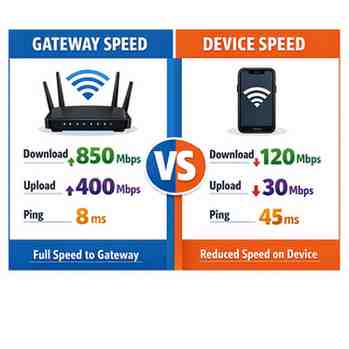
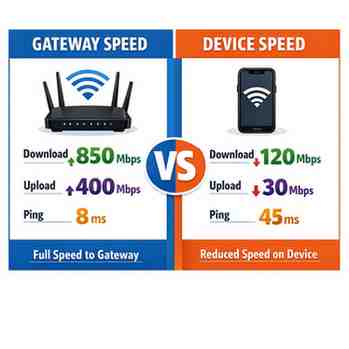
One unique feature available to Xfinity users is the ability to compare gateway speed with device speed. This distinction provides deeper diagnostic value.
Speed to Gateway
This measures the connection delivered directly to your modem. It essentially answers one question:
Is your internet service provider delivering the speed promised in your plan?
If this number aligns with your subscribed plan, the external network is functioning properly.
Speed to Device
This measures the performance experienced on your specific device over Wi-Fi or Ethernet. Therefore, it reflects real-world conditions, including interference and hardware limitations.
If gateway speed is high but device speed is low, the issue likely lies within:
Wi-Fi interference
Router placement
Device hardware
Background applications
As a result, the comparison becomes a powerful troubleshooting tool.
Why Speed Test Results Vary
Many users feel confused when test results fluctuate. However, variation is normal and often expected.
Network Congestion
Internet traffic peaks during evening hours when more households are streaming or gaming. Consequently, shared network infrastructure may experience temporary slowdowns.
Wi-Fi Interference
Walls, furniture, and other electronic devices can disrupt signals. Additionally, neighbouring Wi-Fi networks may compete on the same channel. Therefore, wireless connections frequently produce lower speeds than wired ones.
Device Limitations
Older smartphones or laptops may not support higher bandwidth standards. Even if your plan offers gigabit speeds, your device hardware may cap performance.
Background Activity
Automatic updates, cloud synchronisation, or streaming on another device can consume bandwidth silently. As a result, test readings may drop unexpectedly.
Understanding these factors prevents unnecessary frustration. Instead of assuming service failure, users can analyse context before contacting support.
What Is Considered a Good Internet Speed?
The answer depends on usage patterns rather than a universal number.
For casual browsing and email, even modest speeds are sufficient. However, households with multiple users streaming simultaneously require higher bandwidth. Likewise, competitive gamers prioritise low latency over raw download rates.
Here is a general reference framework:
Basic browsing: 5–10 Mbps
HD streaming: 15–25 Mbps
4K streaming: 25–50+ Mbps
Large households: 100+ Mbps
Competitive gaming: Low latency under 30 ms
Nevertheless, these numbers represent guidelines rather than rigid standards. Therefore, evaluating performance should consider actual usage needs.
EEAT Perspective: Why Credible Speed Testing Matters
From an Experience, Expertise, Authoritativeness, and Trustworthiness standpoint, reliable testing tools enhance informed decision-making. First, accurate diagnostics empower users to evaluate whether they receive advertised service levels. Second, transparent metrics support accountability between providers and customers. Third, consistent measurement over time helps detect emerging performance issues.
Furthermore, provider-based tools like the Xfinity speed test integrate directly with network infrastructure. This can offer more context for Xfinity subscribers compared to generic platforms. However, cross-checking results with independent tools also adds credibility. Therefore, responsible users rely on multiple data points rather than a single measurement.
How to Run the Xfinity Speed Test Accurately
Why Accuracy Matters Before You Click “Start”
Running a speed test seems simple. However, the accuracy of your results depends heavily on preparation. Many users unknowingly test under poor conditions, and consequently, they misinterpret normal fluctuations as service failure.
Therefore, before running the Xfinity speed test, it is important to control as many external variables as possible. Small environmental changes can significantly affect readings. In other words, testing carelessly often produces misleading numbers. If your goal is reliable data, preparation is not optional. Instead, it is essential.
Step-by-Step Guide: How to Run the Test Properly
Step 1: Choose the Right Device
Ideally, you should test on the device that experiences performance issues. For example, if your laptop struggles during meetings, test from that laptop rather than your phone.
However, if you want to measure maximum performance potential, use a modern device with updated hardware. Older equipment may not support higher speeds, and as a result, readings may appear lower than expected.
Step 2: Connect via Ethernet (If Possible)
A wired connection provides the most stable results. Wi-Fi, although convenient, introduces interference and signal loss. Therefore, using an Ethernet cable removes one major variable from the equation.
If Ethernet is unavailable, position yourself close to the router. Additionally, avoid testing in areas with thick walls or multiple obstructions.
Step 3: Pause Background Activity
Before initiating the test:
Close streaming services
Pause large downloads
Disable cloud backups temporarily
Ensure no one else in the household is gaming or streaming.
Bandwidth is shared across devices. Consequently, active usage elsewhere can reduce measured speeds.
Step 4: Restart the Gateway (Optional but Helpful)
If you suspect performance issues, rebooting the modem and router can refresh the connection. This simple step often resolves temporary glitches. However, avoid restarting repeatedly within short intervals, as that may trigger network protection systems.
Step 5: Run the Xfinity Speed Test
Now you can run the Xfinity speed test through:
The official website
The Xfinity mobile app
Wait for the test to complete fully. Do not switch tabs or minimise the browser during the process, because interruptions may distort results.
Step 6: Repeat at Different Times
One test is not enough. Instead, conduct multiple tests:
Morning
Afternoon
Evening peak hours
This approach provides a broader performance picture. Consequently, you can identify whether slowdowns are consistent or time-specific.
Understanding Your Results: What the Numbers Actually Mean
Seeing numbers on the screen is easy. Interpreting them accurately requires context.
When Download Speed Matches Your Plan
If your measured download speed is close to your subscribed tier, your connection is likely functioning properly. Minor differences are normal due to overhead and network variability. For example, if you pay for 300 Mbps and see 280–310 Mbps, that range is reasonable. Therefore, slight deviations should not cause concern.
When Upload Speed Appears Lower Than Download
Many residential plans prioritise download capacity. As a result, upload speeds are typically lower. This design supports streaming and browsing, which are more common activities. However, if your upload performance is dramatically below your plan’s advertised rate, further troubleshooting may be necessary.
When Latency Is High
Latency above 50–60 milliseconds may indicate congestion or routing issues. For competitive gaming, even small increases can affect responsiveness. Therefore, consistent high ping deserves investigation. However, occasional spikes do not automatically signal a serious problem. Instead, patterns over time are more meaningful than isolated readings.
Gateway vs Device Results: A Deeper Diagnostic Approach
One of the most valuable features available to subscribers is comparing gateway speed to device speed.
If gateway results align with your plan, but device speeds are significantly lower, the issue likely lies within your internal network. For example:
Weak Wi-Fi signal
Outdated router firmware
Network congestion within the home
Hardware limitations
On the other hand, if both gateway and device speeds are consistently below expectations, the issue may originate outside your home. In that case, contacting support becomes reasonable.
This layered approach improves troubleshooting efficiency. Instead of guessing, analyse data systematically.
Common Myths About Speed Testing
Despite widespread usage, several misconceptions persist.
Myth 1: Higher Speed Always Means Better Experience
Speed is important, but stability matters equally. A fluctuating 500 Mbps connection may feel worse than a steady 200 Mbps line. Therefore, consistency should not be overlooked.
Myth 2: One Test Proves Everything
Internet performance changes throughout the day. Consequently, relying on a single reading provides an incomplete picture.
Myth 3: Wi-Fi Should Match Ethernet Speeds Exactly
Wireless networks experience interference and signal degradation. Therefore, expecting identical results from Wi-Fi and wired connections is unrealistic.
Myth 4: All Speed Tests Produce Identical Results
Different platforms use different server networks and measurement algorithms. As a result, slight variations are normal. Comparing trends rather than exact numbers offers better insight.
Factors That Influence Real-World Performance
Even when the Xfinity speed test shows strong results, your experience may still feel inconsistent. This disconnect often arises from additional variables.
Router Placement
Placing a router near the centre of your home improves signal distribution. Conversely, hiding it inside cabinets or behind large objects weakens performance.
Frequency Bands (2.4 GHz vs 5 GHz)
The 2.4 GHz band offers wider coverage but lower speed. In contrast, the 5 GHz band provides higher speed over shorter distances. Therefore, selecting the appropriate band impacts experience.
Firmware Updates
Manufacturers release updates that enhance stability and security. Outdated firmware may reduce efficiency. Consequently, keeping devices updated is a simple yet effective step.
Household Network Load
Smart TVs, gaming consoles, smart speakers, and security cameras all consume bandwidth. While each device may use minimal data individually, combined usage increases overall load.
Understanding these dynamics prevents unrealistic expectations.
Troubleshooting Slow Results: A Structured Approach
If your readings consistently fall below expectations, follow a logical sequence.
First, confirm whether the issue appears on multiple devices. If only one device shows slow performance, the problem is likely hardware-related.
Second, compare gateway and device speeds. If gateway speed is normal, focus on internal network adjustments.
Third, test using Ethernet. If wired performance improves significantly, Wi-Fi optimisation becomes necessary.
Fourth, inspect cables and hardware for damage. Loose or degraded cables can reduce throughput.
Finally, if all internal checks pass and speeds remain low, contact customer support with documented results. Providing multiple test records strengthens your case and accelerates assistance.
The Role of Independent Testing for Verification
Although provider-based tools are useful, cross-verifying results with independent platforms increases confidence. If both tests produce similar readings, your data becomes more reliable.
However, small discrepancies are expected. Therefore, consistency across several tests matters more than exact numerical alignment.
This balanced strategy aligns with EEAT principles. You rely on evidence, compare sources, and make informed decisions rather than assumptions.
Read Also: Parental Opt-Out Rights in Education
Conclusion
Reliable connectivity supports nearly every aspect of modern life. However, effective troubleshooting begins with accurate measurement. Understanding how speed testing works, what the metrics represent, and how to interpret variations empowers users to make informed decisions.
Instead of reacting emotionally to occasional slowdowns, a structured approach leads to better outcomes. Over time, consistent monitoring, proper equipment, and thoughtful plan selection create a stable digital environment.
FAQs
1. How accurate is the Xfinity speed test?
It provides reliable results for measuring connection performance within Xfinity’s network, especially when tested under controlled conditions.
2. Why do my speed test results change at different times of day?
Network congestion during peak hours can temporarily reduce available bandwidth.
3. What is a good download speed for a family household?
For multiple users streaming and working online, 100 Mbps or higher is generally suitable.
4. Does router placement affect internet speed?
Yes, placing the router centrally and away from obstructions improves signal strength and stability.
5. Should gateway speed and device speed be the same?
Not always. Device speeds may be lower due to Wi-Fi interference or hardware limitations.